View your Financial Aid Offer
Log In & View your Financial Aid Offer
Here is a step-by-step guide for returning students to navigate MyAQ and Self Service to see your financial aid offer.
Navigate to the MyAQ home page here: http://my.aquinas.edu
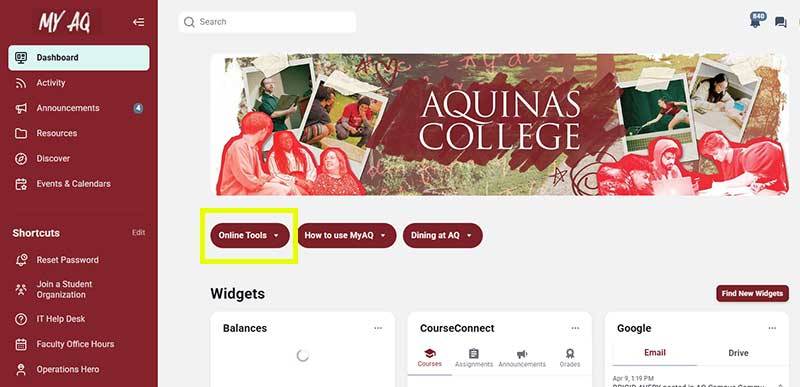
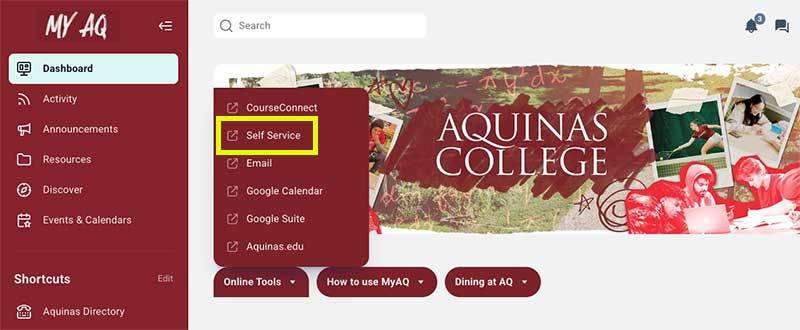
Enter Self Service by clicking “Online Tools” then clicking “Self Service.”
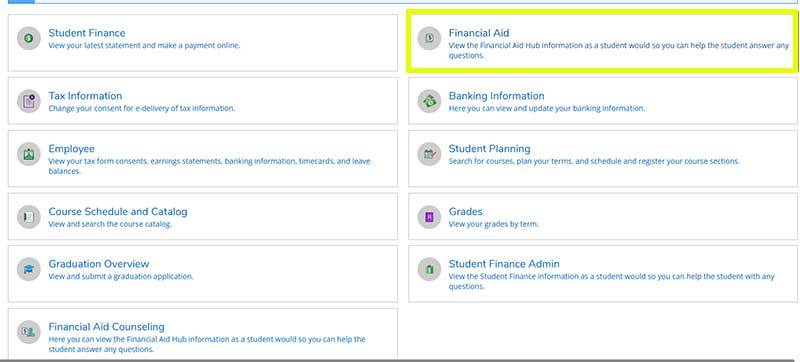
Locate and click the "Financial Aid" button on the Self Service website.
Select the award years you would like to view.
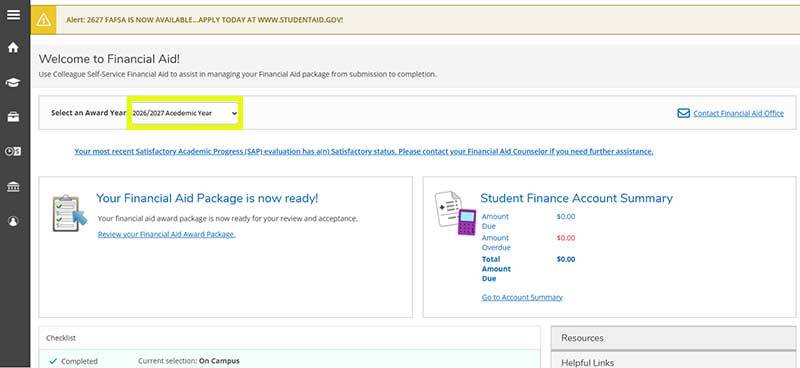
Financial Aid Home is the default landing page. This gives you an overview of your financial aid for the award year selected (or defaulted) in step 4.
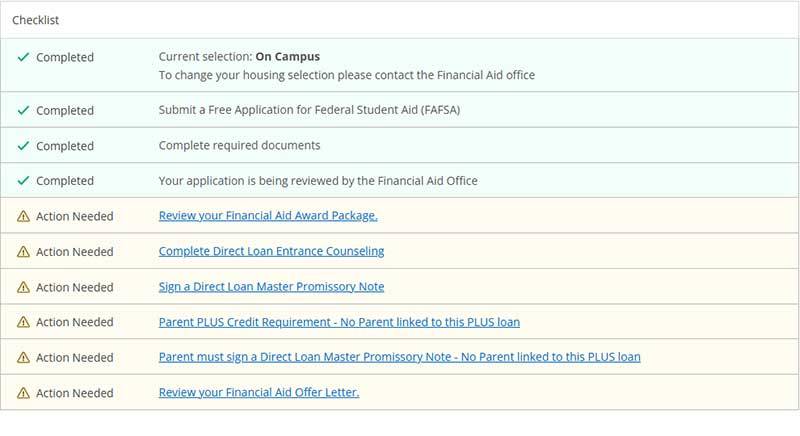
Click on the Financial Aid breadcrumb at the top of the page to view other financial aid options.
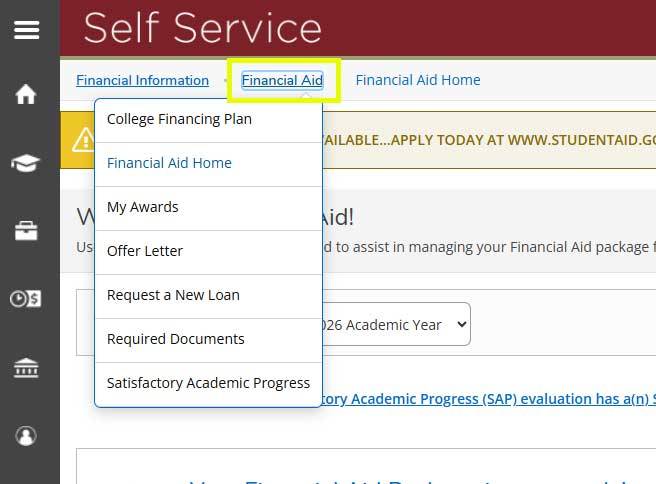
Your offer letter populates when your aid has been processed, and no requirements are needed.
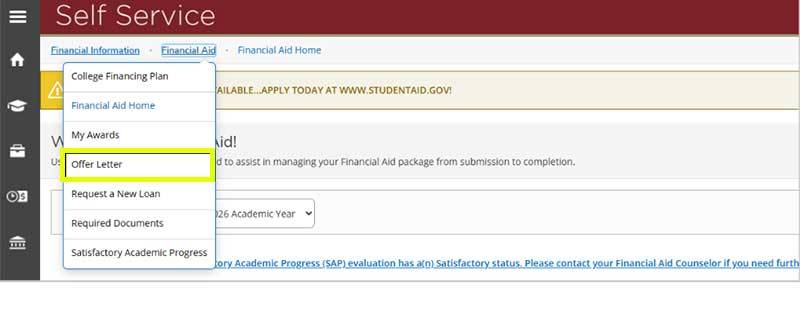
Click on Print Offer Letter on the top left to download a printable version of your offer letter.
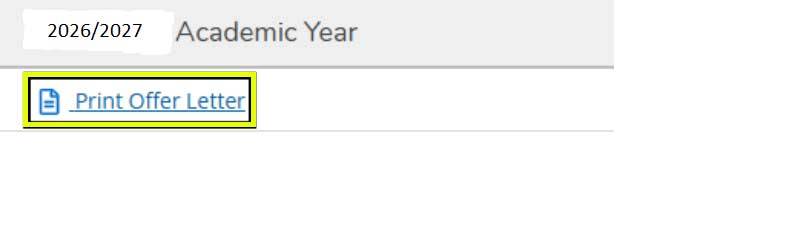
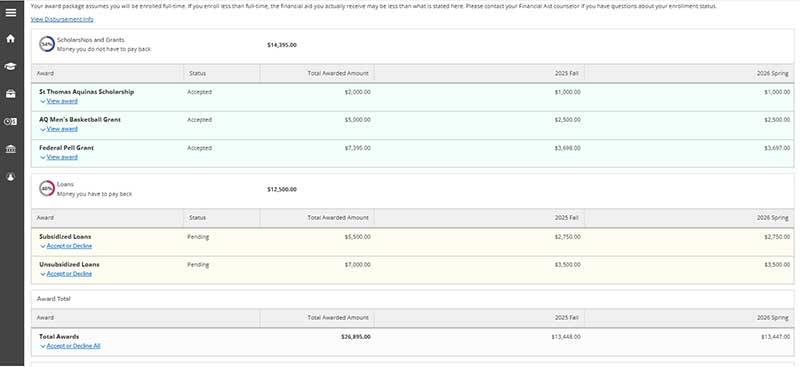
My Awards is a detailed version of your awards that also displays the status of each award (offered, accepted, declined, etc.), the amount awarded, the term, the total awards, and the loan requirements, if any.
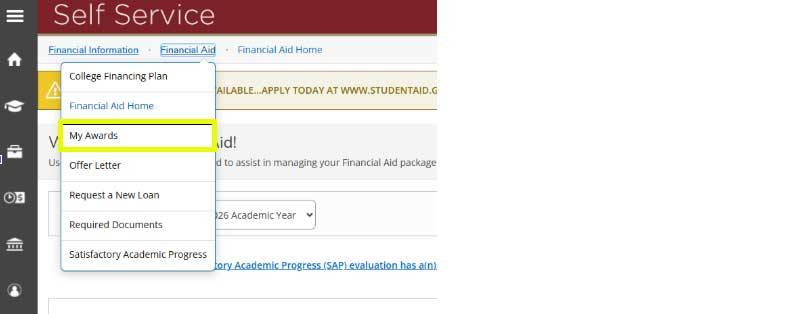
Here is an example of the My Awards section of your financial aid offer.
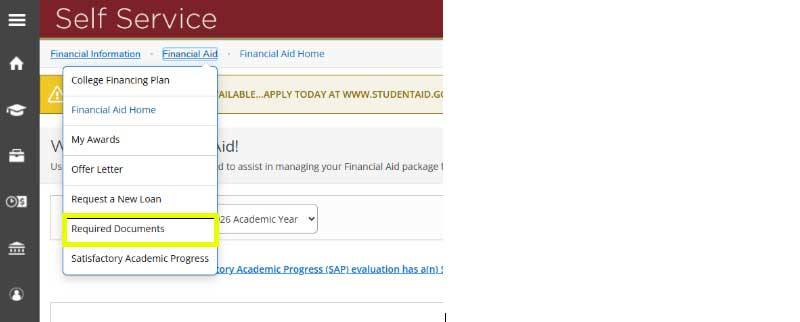
Required Documents is a detailed list of all financial aid items/actions, including those still needed and those completed.
We’re Here to Help
Our counselors are ready to walk through your award with you.
Phone: (616) 632-2893
Email: financialaid@aquinas.edu
QUESTIONS? CONTACT US
Financial Aid
Call: (616) 632-2893
Text: (616) 441-0639
financialaid@aquinas.edu